Create Your First DM Automation
Set up intelligent auto-replies, capture leads, add clickable buttons, and never miss a customer again — all in under 5 minutes.
Build Your First Automation
Automations are the heart of GroHubz. They let you reply instantly when someone comments a keyword or sends a specific message. Let's build one together.
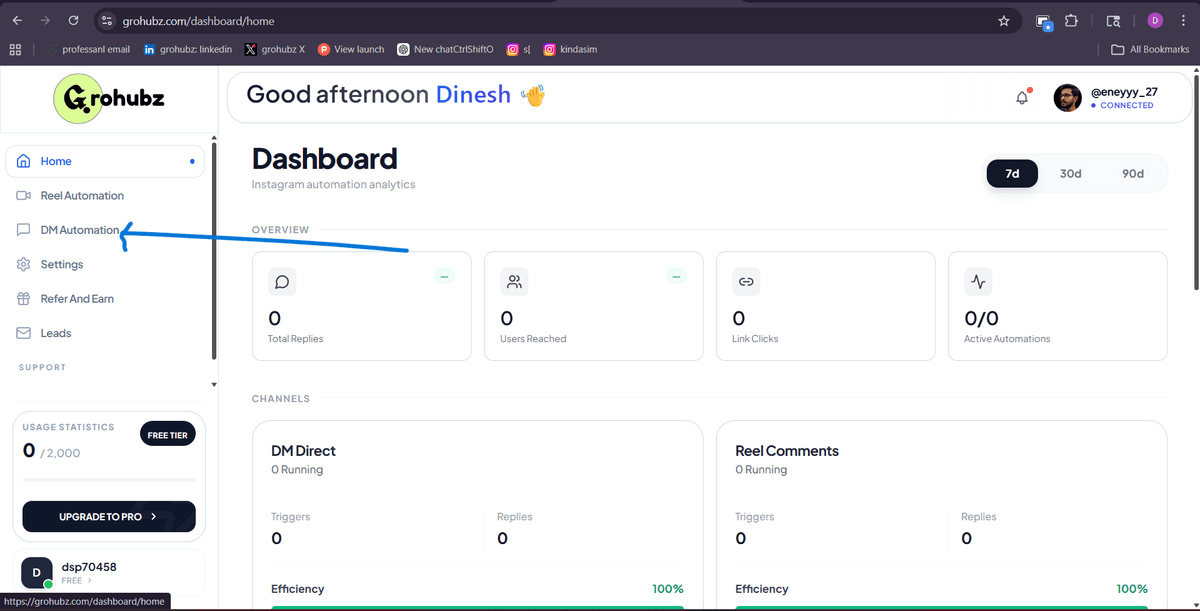
Open DM Automation from Sidebar
From your GroHubz dashboard, look at the left sidebar. Click on 'DM Automation' or 'Automations' menu item.
Click 'Create Automation'
On the DM Automation page, you'll see a message saying 'Start your first automation' and a blue 'Create Automation' button. Click it.
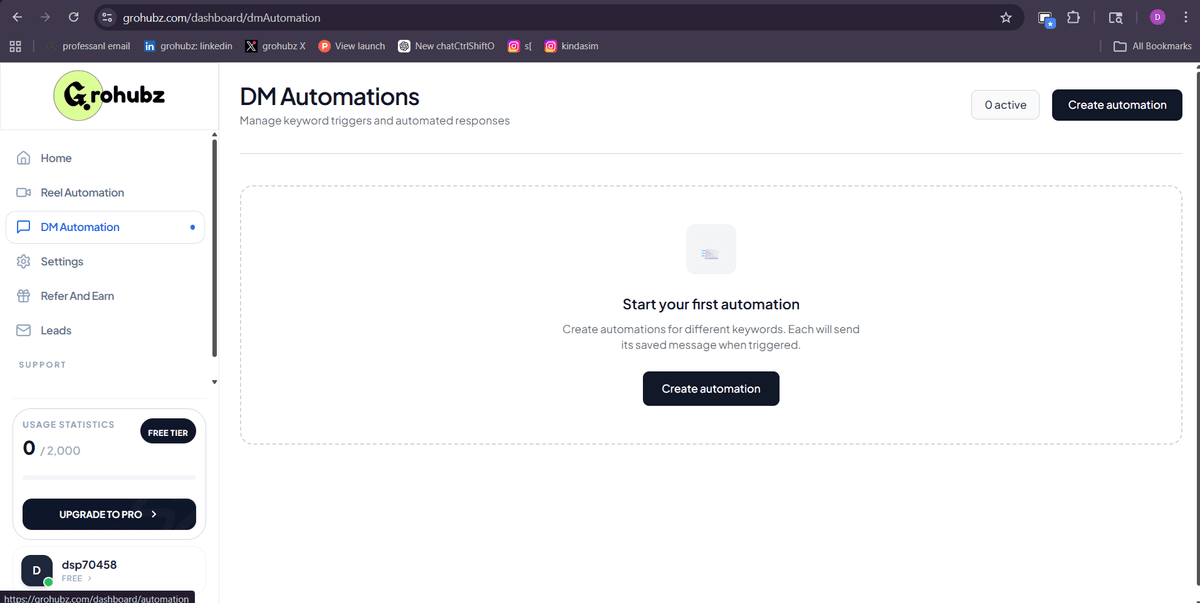
Empty state with 'Create Automation' button
Set Your Trigger Keywords
In the popup that appears, the first field is for keywords. Type the word(s) that will trigger this automation.
📝 Example:
pdf, link, product, free guide, ebook, discount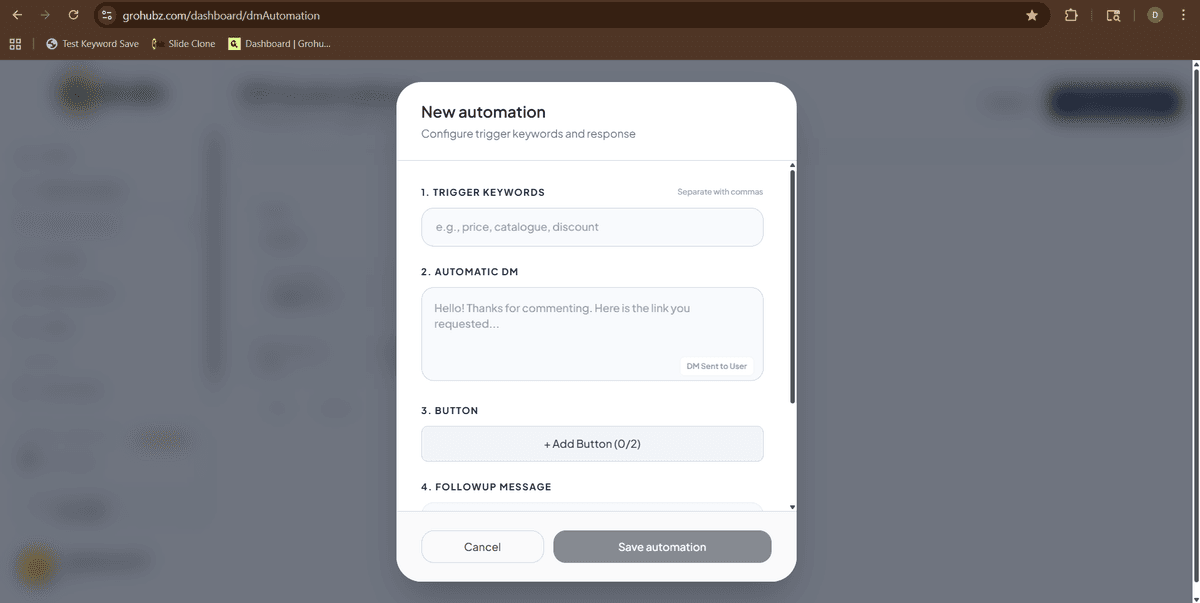
Write Your Auto-Reply Message
In the 'Automatic Reply' field, type the message you want sent automatically when someone triggers your keyword.
✍️ Example reply:
Hey! Thanks for your interest. Here's the link to my free guide 👇
Add Clickable Buttons (Optional)
Want to include a link? Use the button feature. You can add up to 2 buttons.
Button 1
Button 2 (Optional)
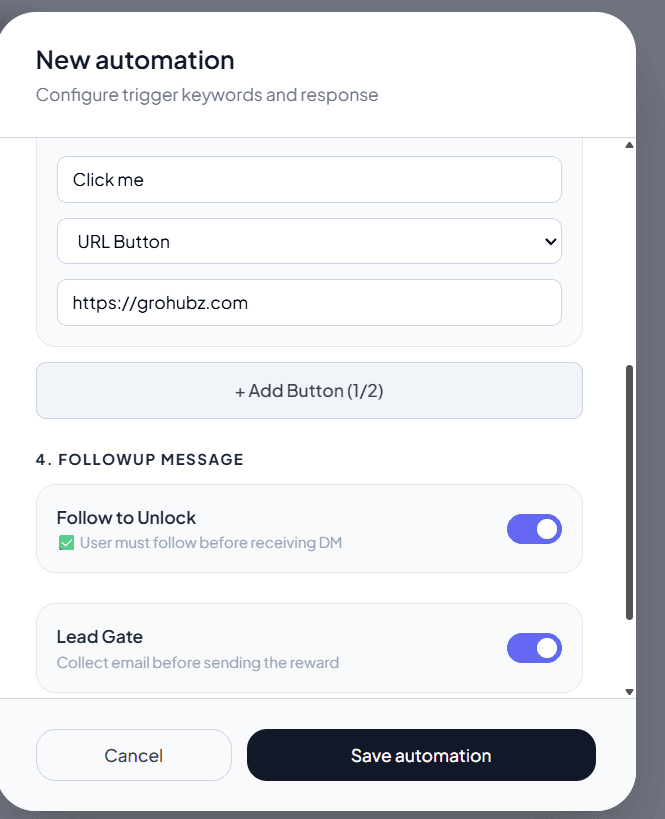
Advanced Features: Follow-Up & Leads
Follow to Unlock
Send first message → user follows you → auto-reply triggers
Lead Collection
Ask for email/phone before sending the auto-reply
Save & Activate Your Automation
Once you've configured everything, scroll to the bottom and click the 'Save Automation' button.
✓ Automation Active!
Your automation is now live. Anyone who types your keywords will get your auto-reply.
📋 Where Do Collected Leads Go?
If you enabled Lead Collection, all captured emails/phone numbers are automatically stored in your dashboard.
To view your leads:
- Go to Dashboard Menu → Leads
- Export leads as CSV anytime
- Use leads for email marketing or retargeting
Turn Followers Into
Paying Customers.
Join 3,000+ creators who have stopped chasing "likes" and started building a real revenue engine on Instagram.
Product
Here is the link you requested! 🔥